Know-How Upload, Update and Knowledge Training
Let's recall that all your knowledge materials are uploaded to the sources folder (and its subfolders Files, Texts, URLs) on your linked Google Drive account. After uploading or modifying these materials, you must always update know-how as explained in the previous step, so that the changes take effect and BuddyPro "reads" and processes the new information.
We recommend uploading Know-How in smaller portions and updating know-how after each portion. This way you have better control over processing and can also verify the cost for the processed portion using the /stats command.
Supported File Formats and Content Types -- Recap
You can provide your know-how to BuddyPro in various formats:
- Files from your computer (uploaded to the
sources/Filesfolder):- Documents: PDF (ideally with text layer, not just scanned images), Microsoft Word
.docx, plain text.txt. - Audio files: You can also upload a video file (e.g. MP4), BuddyPro will primarily process the audio track from it.
- Video files: BuddyPro primarily processes the audio track for transcription to text. It does not currently analyze the video content (e.g., graphs in a video must be verbally commented for BuddyPro to understand them).
- Images: BuddyPro will attempt to analyze the image and transcribe its textual content. It does not understand the general visual context of an image unless it is described by text.
- Documents: PDF (ideally with text layer, not just scanned images), Microsoft Word
- Google Docs (created or moved to the
sources/Textsfolder): Ideal for text that you want to update frequently and easily (e.g. FAQs, latest practices, term definitions, fixes for errors you've encountered). BuddyPro works directly with the content of these Google Docs. - URL links (inserted into the
sources/URLs/URL SOURCES.gdocfile -- each link on a new line):- Publicly accessible websites and blog articles: BuddyPro will attempt to download and process their textual content. Insert links to specific pages (e.g. a specific article), not to the entire website.
- YouTube videos: Recommended maximum length is approximately 2 hours. Videos must be set to Public or Unlisted. BuddyPro can process entire channels and playlists.
- Videos on Vimeo: You can transcribe an entire Vimeo folder if you have a Standard Vimeo plan or higher.
- General rule: Always check the availability of a URL in the anonymous window of your browser. If the content loads there (without having to log in), BuddyPro should be able to handle it.
Working with Individual Subfolders in Sources -- What Goes Where?
For proper functioning, it's crucial to follow the designated folder structure:
- 📁
sources/Files: Upload files from your computer here (PDF, DOCX, MP3, MP4, JPG, PNG, etc.). You can organize them into your own subfolders, nested as deep as you like -- BuddyPro walks the whole tree and processes every file in it. Two rules apply: file names must be unique across the entireFilestree (transcripts are stored flat, so two files with the same name would collide), and Google Docs don't belong here -- put those insources/Texts. Leave the systemTRANSCRIPTIONSsubfolder alone. - 📁
sources/Texts: Create new Google Docs here (right-click > New Google Doc) or move existing Google Docs from other parts of your Google Drive here. Your own subfolders are allowed here as well, at any depth. Only Google Docs belong in this tree (uploaded files such as PDF, DOCX or MP3 go tosources/Files), and document names must be unique across the entireTextstree. Leave the systemMETADATAsubfolder alone. - 📁
sources/URLs: In this folder you'll find a pre-created Google Doc, usually namedURL SOURCES.gdoc. Open this file and paste the URL links into it, each on a separate new line. No subfolders and no other files here -- this folder may only containURL SOURCES.gdocand the systemTRANSCRIPTIONSfolder.
Your own subfolders work only in sources/Files and sources/Texts (and in the same two folders inside RAW SOURCES). The sources/URLs folder and the ROLES folder must stay flat -- a subfolder or an unexpected file there stops the know-how update with an error message telling you which folder to clean up.
Important Tips for Preparing and Uploading Content
-
⭐️ Quality and relevance first: Focus on key, valuable, current, and relevant information for your target audience. Remember that BuddyPro also draws from the extensive knowledge of general AI models. Your specific know-how serves to have AI provide contextualized, accurate, and approach-appropriate advice. You are the curator of knowledge for your AI, selecting the "best" for the purpose.
-
⚖️ Respect copyright: As mentioned, only upload content to which you have full copyright, or that is freely distributable (e.g., public domain, Creative Commons with appropriate license). Or create your own unique materials (e.g., with AI help for in-depth research). Uploading content you don't have rights to violates the terms of service.
-
🧩 Logical content division: If possible and sensible, divide extensive topics into multiple smaller, thematically coherent files (e.g., individual book chapters as separate PDF/DOCX, individual course lessons as separate audio/video files). This can help AI better identify specific areas and create higher quality expert subroles.
-
🗑️ Avoid duplicates: Try to avoid uploading absolutely identical content multiple times (e.g., the same PDF in the Files folder and also a link to the same PDF on the web in the URLs folder). Although AI has mechanisms for working with duplicates, a clean and unique set of sources is always better. Too many duplicates can negatively affect the relevance of retrieved information for AI. Minor overlaps in content (e.g., similar topic explained in different contexts in two different videos) can, on the contrary, be beneficial.
-
👁️ Visual elements in materials (graphs, diagrams, images): Remember that BuddyPro primarily processes text content. If your materials contain important graphs, diagrams, or images, make sure their meaning is also verbally described and explained either directly in the material (e.g., in video you verbally comment on the graph), or in accompanying text. AI can analyze the image itself (for text content), but context and explanation are key for proper understanding.
-
🔄 Updating and deleting know-how: If you need to update a file, simply replace the old version with a new one in the
sources/Filesfolder (with the same name) or edit the content in Google Doc in thesources/Textsfolder or in theURL SOURCES.gdocfile. If you want to completely remove some know-how, delete the respective source file from the sources folder (not its transcript from the TRANSCRIPTIONS folder). After any such change (addition, modification, deletion), always run update know-how in the Dashboard with the Update Know-how button so that BuddyPro registers your changes and synchronizes its knowledge base. -
⚙️ Transcription settings: Don't forget that in the Dashboard in the Configuration section, Transcription Settings part, you can influence the quality and details of audio and video file transcription (see chapter 9).
Working with the RAW SOURCES Folder
In addition to the SOURCES folder, you now have a RAW SOURCES folder available in Google Drive.
It has the same structure (subfolders Files, Texts, URLs) and the same subfolder rules -- your own subfolders are allowed in RAW SOURCES/Files and RAW SOURCES/Texts, not in RAW SOURCES/URLs -- but it works differently:
- Content uploaded to SOURCES is automatically divided into smaller chunks (approx. 1500 characters) so that BuddyPro can extract only the parts that are most relevant when answering.
- Content uploaded to RAW SOURCES is not chunked -- each document is processed and stored in know-how as a whole (up to a length of approx. 6000 characters).
👉 This is useful in situations where you need BuddyPro to have an entire document available as a whole (e.g., a recipe, instructions, contract, or methodology). If the document were stored in SOURCES, BuddyPro might use only part of it when answering, which wouldn't make sense.
⚠️ Beware of costs:
If BuddyPro retrieves multiple files from RAW SOURCES when answering, AI credit consumption can increase significantly (e.g., 10 documents x 6000 characters is several times more than 10 regular chunks of 1500 characters). Therefore, use RAW SOURCES only for content that really must be kept as a whole.
Know-how Section in the Dashboard
Now that you have your know-how prepared in the sources folder on Google Drive and have possibly adjusted settings in the Transcription Settings part, it's time to instruct your BuddyPro instance to "read" all this information, process it, store it in its knowledge base, and also load your current personality and onboarding settings.
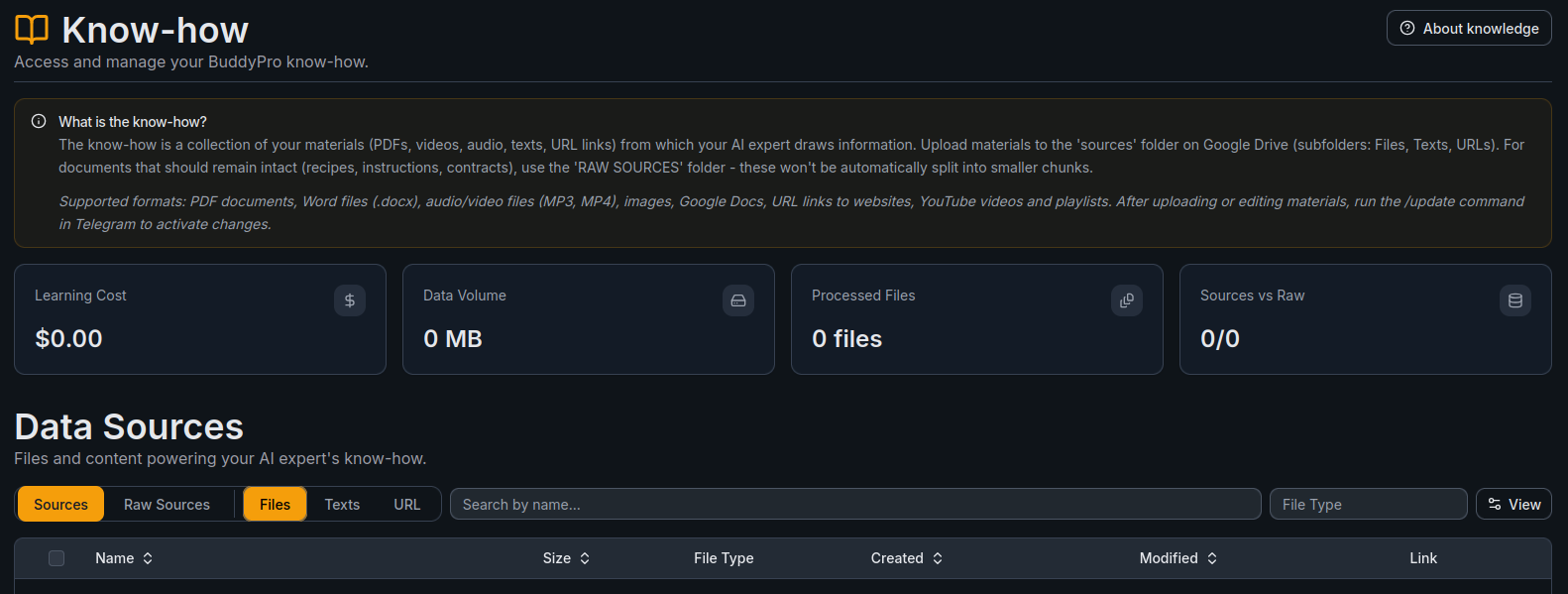
The Dashboard's Know-how section gives you an overview of your knowledge base — including stats like Learning Cost, Data Volume, Processed Files, and Sources vs Raw count. Below the stats, the Data Sources area lets you browse your files organized by tabs: Sources, Raw Sources, Files, Texts, and URL. You can search by name and filter by file type.
The Know-how section in the Dashboard is read-only — it displays the current state of your knowledge base but doesn't allow direct editing. To add or modify know-how materials, upload them to Google Drive and run the /update command in Telegram.
Update Know-How: What Exactly Does It Do and When Do You Need It?
To start the update, send the /update command to your BuddyPro instance in Telegram. You can also monitor the status of your knowledge base in the Dashboard's Know-how section, which displays your current sources, file stats, and processing history.
This is the central point for updating practically everything that defines your AI expert (except for the content of expert subroles themselves, which is handled by the /updateRoles command, see the Expert Subroles chapter). Behind the scenes, update know-how triggers the following complex series of steps:
- Synchronization with the sources folder on Google Drive: BuddyPro checks the contents of your
sourcesfolder and all its relevant subfolders (sources/Files,sources/Texts,sources/URLs). It identifies new files or URLs added since the last update, recognizes changes to existing Google Docs, and notices deleted files or URLs. - Processing new or changed knowledge sources: For new or modified audio and video files, it transcribes them to text (respecting your
transcription_settings.gdoc). For PDFs, DOCX, TXT files and Google Docs, it extracts their complete text content. For URL links, it downloads and extracts the textual content of the web pages. Resulting transcripts are saved to the appropriatetranscriptionssubfolders on your Google Drive. - Updating the internal vector database (AI knowledge "brain"): All newly processed textual content is intelligently divided into smaller logical chunks. Each chunk is converted into a vector embedding (a mathematical representation of its meaning and context) and added or updated in your AI instance's internal secure vector database. If you have deleted source files or URLs, the corresponding vectors are also removed -- so your AI "forgets" information that should no longer be part of its knowledge.
- Updating the list of suggested expert subroles: Based on the complete, up-to-date content of your knowledge base, BuddyPro re-analyzes the possible topics and specializations and updates the list in
ROLES/list_of_roles.gdoc. Note: the update know-how process alone does not create or modify the detailed content (definitions) of these roles -- that is the job of the/updateRolescommand (see Expert Subroles chapter). - Loading the current versions of key configuration files: The update also ensures that your AI instance reloads and applies the current contents of
system_prompt.gdoc,onboarding.gdoc, andtranscription_settings.gdoc. This means any change to these files requires running update know-how to take effect.
How to Track the Progress of Update Know-How and When Is It Done?
- After launching update know-how, your BuddyPro instance in Telegram usually confirms that the process has started with a short message (e.g., Updating Buddy Pro...).
- Processing time depends on the amount and type of new or changed know-how and configuration files. Processing a few small text files can be done within seconds or minutes. Transcribing hours of new audio/video materials or processing a large number of URLs can take longer (sometimes several hours, depending on the amount of content).
- After successfully completing the entire process, your BuddyPro instance should send you a message in Telegram, for example: Updating Buddy Pro Finished Successfully.
- What to do if the process takes too long?
Troubleshooting Common Errors and Problems During Update Know-How Processing
If BuddyPro encounters a problem with a specific file, URL, or configuration files during the update know-how process, it usually informs you in a message in Telegram after (partial or unsuccessful) completion and lists the problematic sources or type of error.
- Most common errors and their solutions:
- After any problem correction on your side, always run update know-how again for the changes to take effect and the system to attempt to process the data correctly again.
Update Know-How Is Your Most Frequent Partner: Use It Regularly!
Let's summarize: you must run the /update command in Telegram EVERY TIME you make any of the following significant changes in your BuddyPro configuration or knowledge base:
- ➕ Add new files (PDF, audio, video, text documents) or URL links to the respective subfolders in the sources folder on your Google Drive.
- ✏️ Edit the content of any existing file or Google Doc in the sources folder (e.g., update information in a PDF, rewrite a chapter in a Google Doc in
sources/Texts, add new URLs toURL SOURCES.gdoc). - ❌ Delete some files or URL links from the sources folder (so AI stops using outdated or unwanted information).
Without running the /update command, your changes will not be reflected in the behavior or knowledge of your AI instance! It's like when you save a document on your computer but don't turn on cloud synchronization -- others (in this case your AI) will still see the old version and work with outdated data or settings.
The Dashboard's Know-how page provides a read-only overview of your knowledge base — you can see your uploaded sources, file statistics (learning cost, data volume, number of processed files), and browse your Sources and Raw Sources. However, the actual update process is triggered via the /update command in Telegram.
Option to Interrupt a Long-Running Process: /stopUpdate Command
If for some very urgent reason you need to interrupt a currently running update know-how process (for example, you realized too late that you accidentally uploaded a huge amount of data you didn't want to process, and you want to stop it as soon as possible), you can use the command:
/stopUpdate
After using /stopUpdate and correcting the situation (e.g., deleting unwanted files), you'll need to run update know-how again.
With this understanding of update know-how, you're now equipped with a key tool for training and configuring your AI Expert. In the next chapter, we'll look at how to create specific expert "hats" from your processed know-how -- i.e., expert subroles -- using the /updateRoles command.
Frequently Asked Questions (FAQ)
Can I upload a scanned PDF that's actually just an image of text, without a text layer?
BuddyPro will attempt to recognize text from the image (OCR), but quality and accuracy will be significantly lower than with a PDF with an existing text layer. Prefer PDFs where you can select and copy text.
What if I have a video longer than the recommended 3 hours?
Consider splitting the video into shorter, thematically coherent parts. Alternatively, if you have a quality text transcript for the video, upload that instead (you'll also save AI credits on transcription).
Can I use subfolders in the sources/Files folder for better organization?
Yes. sources/Files and sources/Texts accept your own subfolders at any depth -- BuddyPro walks the entire tree and processes every file in it, so a file three levels deep is treated exactly like one in the root. Two limits apply: names must be unique across the whole tree (two files called pricing.pdf in two different subfolders stop the update with an error), and the content type must match the folder (binary files in Files, Google Docs in Texts). Subfolders are not allowed in sources/URLs and in ROLES -- those must stay flat. The same rules apply inside RAW SOURCES.
How will BuddyPro process an image that doesn't contain any readable text (e.g., just a landscape photo)?
AI will attempt to analyze the image, but if it contains no recognizable text, the benefit for your knowledge base will be minimal. The primary goal of image analysis is extraction of textual information.
If I delete a file from the sources folder, will its transcript and knowledge automatically be deleted from BuddyPro?
Yes. After deleting the source file (e.g., PDF from sources/Files) and subsequently running update know-how, BuddyPro synchronizes its database and removes the corresponding knowledge and transcript.
Is it better to upload all materials at once, or can I add them gradually?
You can do either. If you upload content gradually, remember that for optimal creation of expert subroles, it's best to have as complete a set of know-how as possible before generating them. For large know-how updates, it may be appropriate to regenerate roles (see chapter 11). In any case, after each content addition or change, you must update know-how in the dashboard.
What if I have the same information in multiple different files? Is that a problem?
If it's absolutely identical content, try to avoid it because it can slightly reduce the variability of AI responses. However, if a similar topic is explained in different contexts or with different nuances in multiple sources, it can actually be beneficial for deeper understanding of the topic by your AI.
What's the difference between uploading an MP4 file to sources/Files and inserting a link to the same YouTube video (which is also MP4) into sources/URLs/URL SOURCES.gdoc?
Functionally, the result (audio track transcript) should be similar. Uploading the file directly to Files gives you more control over the source but may take up more space on your Google Drive. A YouTube link is simpler but you depend on the video's availability on YouTube. If you have the video file, it's often safer to upload it directly.
What happens if I upload a physical .docx file to sources/Texts instead of creating/moving a Google Doc?
The sources/Texts folder is primarily intended for native Google Docs (those you create directly in Google Drive). If you upload a .docx file from your computer here, Google Drive can display and allow editing it, but for BuddyPro it's safer when you work directly with Google Doc format. .docx files belong in the sources/Files folder.
What should I watch out for with URL links?
Make sure the linked page/video is publicly accessible and doesn't require login, payment, or specific permissions. BuddyPro cannot access content behind paywalls, in closed membership sections, or on non-public corporate intranets. Always verify link functionality in an incognito browser window.
Do I have to run update know-how after every minor edit of one file in sources?
Yes, if you want this minor edit to be reflected in AI knowledge. Update know-how is designed to be relatively efficient and process only changed or new parts.
What if I accidentally delete a transcript (transcription file) from the transcriptions folder instead of the original file from sources?
If you delete only the transcript .gdoc file from the transcriptions folder, but the original source file (e.g., PDF, MP3) remains in the sources/Files folder (or URL in URL SOURCES.gdoc), then on the next run of update know-how, the system detects that the source file still exists but its transcript is missing, and will attempt to create it again. However, if you want AI to "forget" that know-how, you must delete the original source file directly from the sources folder (e.g., sources/Files/my_video.mp4) and then run update know-how.
What's the difference between updating the role list in ROLES/list_of_roles.gdoc and generating role content?
Update know-how analyzes your know-how and updates only the list of suggested expert subrole names in the ROLES/list_of_roles.gdoc file. This file serves as a "menu" of available specializations. However, update know-how does not create or change the detailed content (definition) of each role (which are separate, often multi-page Google Docs in the ROLES folder). That's the task of the update roles command, which based on the current list and your know-how will generate or update the content of each individual role in detail.