Creating a Great First Impression: Onboarding Messages
When a new user first initiates a conversation with your AI Expert, it's crucial to properly welcome them, guide them, and set correct expectations. This is handled in the Dashboard Messages section. This section contains 3 main sections where you define message texts.
First Messages Section (Welcome Messages for the Very First Contact)
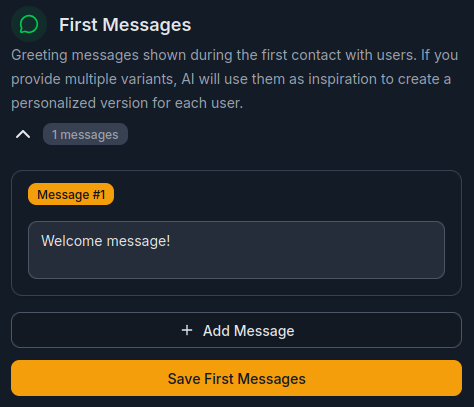
Here you define one or more variants of welcome messages. If you provide multiple, BuddyPro will use them as inspiration for each new first contact and create a message in this style personalized for that user. This can make the first impression more interesting and less robotic.
What should a quality welcome message contain?
- Warm and personal welcome: Address the user by name if technically possible and appropriate (the platform may have access to the Telegram name if the user explicitly shares it, but this isn't standard behavior for bot's first message). Rather choose a general but warm greeting.
- Brief introduction of your AI Expert: Briefly say who they are (what their name is) and what they can primarily help with. Emphasize their uniqueness (e.g., "I'm your personal AI Coach for achieving financial independence, trained on expert John Smith's methods.").
- Setting basic expectations (very important!): Briefly indicate what AI can do, but also what it can't. You can mention it's an AI and can learn. This is a great place for a short, friendly disclaimer (e.g., "Remember, I'm an AI, and while I try to be as helpful as possible, I'm not infallible. For crucial life decisions, always consult with human experts too.").
- After any edit, it's essential you click the Save first messages button. This instructs AI to load the new message version. Without this step, your changes won't be reflected for newly arriving users.
- Clear call to action: Suggest how the user can start the conversation. For example:
- "Tell me, what troubles you most today in the area of [your topic]?"
- "What do you want to ask me first about [your topic]?"
- "How can I help you today on your journey to [target state you help with]?"
- "To help you as best as possible, please tell me briefly about yourself and what you'd like to achieve."
- Tip for advanced onboarding -- Link to intro video:
- Very effective is to create a short (e.g., 2-5 minute) intro video where you personally (or a pleasant narrator) introduce your AI Expert, show how to communicate with it, what to ask, and what its main benefits are. You can also repeat key disclaimers here and emphasize that AI is a partner, but the final decision is up to the user.
- Upload this video to YouTube (can also be "unlisted" -- not public, only accessible via link) and insert the link directly into the text field of the First messages section. Telegram will automatically display this link as an interactive video preview right in the chat, which can significantly improve first impression and user engagement.
Initiated Messages Section (Proactive Messages for Maintaining Engagement)
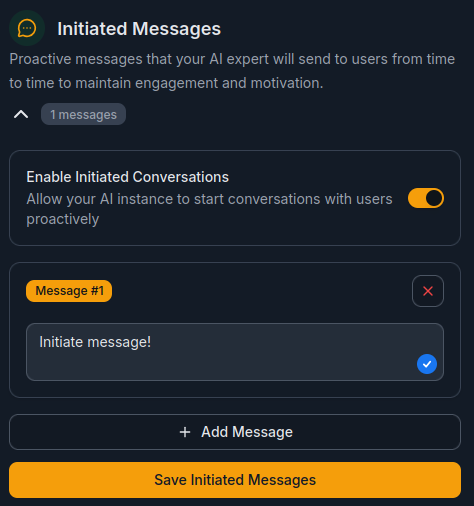
This section allows you to set proactive messages that your AI Expert will send to users from time to time to maintain their engagement and motivation. Unlike onboarding messages that are sent upon reaching a certain number of messages, initiated messages are sent from the bot's own initiative over time.
What is it for?
- Maintaining contact with users who haven't communicated for a while.
- Reminders and motivation to continue working on their goals.
- Building relationship between user and your AI Expert.
- Offering support or new tips relevant to the user's topic.
How to set it up?
- Enable the feature: First you must enable the Enable initiated conversations toggle. Without this step, AI Expert won't proactively reach out to users.
- Add messages: Click the Add message button and enter text:
- Each message can have a maximum of 1000 characters.
- You can add any number of messages.
- Note: AI Expert will use these messages as inspiration to create personalized outreach.
- Save changes: After any edit, it's essential to click the Save initiated messages button. Without this step, your changes won't take effect.
Recommendations:
- Formulate messages friendly and informally, as if written by a friend.
- Avoid overly salesy or pushy tone.
- Focus on providing value, not just reminding of existence.
Onboarding Messages Section (Automatic Messages During Conversation)
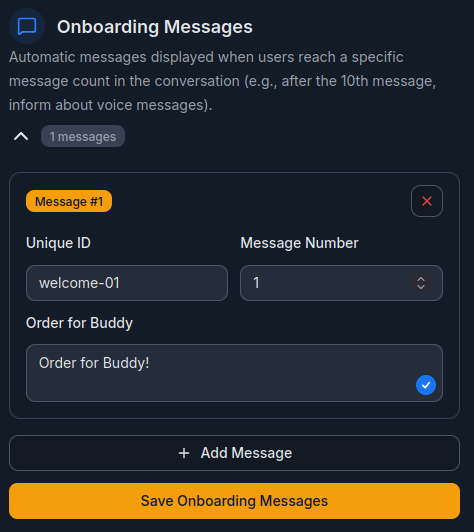
This section allows you to set automatic messages that your AI Expert will send to the user after they reach a certain number of exchanged messages in their shared conversation (counts both messages from user and responses from AI).
What is it for?
- To gradually introduce additional features of your AI (e.g., "Did you know you can also send me voice messages? It's often faster and more convenient.").
- To maintain user engagement and motivation (e.g., "We've already exchanged 20 messages, great work on your topic! I'm still here for you, keep asking.").
- To offer further help or relevant resources (e.g., "If you'd like to discuss [specific topic related to current conversation] more in depth, my creator has a great article about it here: [URL]").
- After any edit, it's essential you click the Save onboarding messages button. This instructs AI to load the new message version. Without this step, your changes won't be reflected for newly arriving users.
How to set it up?
- In the configuration you define:
- Unique ID — a unique identifier for the message (e.g.,
welcome-01) - Message Number — the message count "milestone" at which the message should be sent (e.g.,
1means after the 1st message) - Order for Buddy — instruction for Buddy to know what to tell the user (e.g.,
"Tell the user...")
- Unique ID — a unique identifier for the message (e.g.,
- Example:
- After 10th message: AI can inform user it can work with voice messages.
- After 30th message: AI can mention reminder function (e.g., "I can remind you of our next session or task, just say so.").
- After 60th message: AI can inform about ability to search the internet.
- Example from default Buddy.fm settings (customize or remove if not relevant for your AI Expert!):
- Recommendations:
- Don't overdo it with the number of these automatic messages. Too many can be disruptive or annoying. Usually 2-3 well-timed and truly relevant and useful messages during the first few dozen interactions are sufficient. Less is sometimes more.
- Make sure these messages are beneficial to the user and truly help them better use your AI Expert or motivate them, not just generic or salesy phrases.
Summary of Differences Between Message Types
| Feature | First Messages | Initiated Messages | Onboarding Messages |
|---|---|---|---|
| When sent | On very first contact | Proactively over time | After X exchanged messages |
| Purpose | Introduction and expectation setting | Maintaining engagement | Gradual user education |
| Trigger | New user starts conversation | Bot's own initiative | Message count milestone |
Voice Responses and Custom Voice Clone as Part of First Impression
Part of a great first impression doesn't have to be just text. Buddy can also respond using voice messages -- with custom voice clone. This allows your AI Expert to speak with a voice that's consistent with your personal brand, communication style, or even directly your actual voice.
Voice responses feel significantly more human, personal, and trustworthy than text alone. For new users, it's often a powerful "wow effect" that immediately strengthens the feeling they're communicating with a real expert, not an anonymous AI.
Why use voice clone already in onboarding:
- Creates a strong emotional first impression
- Increases trust and authenticity of AI Expert
- Helps differentiate from regular chatbots
- Supports feeling of personal contact from the first message
A typical and very effective use is an intro voice onboarding message where Buddy introduces itself, explains what it can help with, and naturally guides the user to the first interaction.
BuddyPro offers two categories of voice functions:
- Standard AI voices - You can choose from several preset voices (alloy, echo, fable, onyx, nova, shimmer) with different characteristics (chapter 26.2.)
- Voice Clone - Creating a copy of your own voice in Telegram in chat with your Buddy Pro instance - using the
/createVoiceClonecommand. After activation, AI will speak with your voice in all languages, even those you don't normally speak (chapter 26.2.).
Voice responses feel significantly more human and personal than text alone. For new users, they represent a "wow effect" that strengthens the impression of communicating with a real expert.
Benefits of using voice clone in onboarding:
- Creates a strong emotional first impression
- Increases trust and authenticity of AI Expert
- Helps differentiate from regular chatbots
- Supports feeling of personal contact from the first message
Typical use: Very effective is an intro voice onboarding message where Buddy introduces itself, explains its role, and naturally guides the user to the first interaction.
Frequently Asked Questions (FAQ)
Can I use Czech or Slovak characters in onboarding messages?
Yes, you can use diacritics and special characters without problems. The only important thing is to follow correct file structure syntax (JSON).
How many variants of First messages is optimal?
There's no strict limit, but 2-3 well-written variants for different user groups or for variety are usually sufficient. Too many variants can be difficult to maintain.
Can the onboarding video be on a platform other than YouTube?
YouTube is primarily supported because Telegram displays its previews well. For other platforms, verify how Telegram displays links. Most important is that the link is publicly accessible.
Should onboarding messages also contain disclaimers, or do those only belong in system prompt?
It's good to mention key disclaimers (especially those concerning AI limits, not replacing professional advice, etc.) both in system prompt (which affects AI behavior) and briefly and friendly in onboarding messages, so users are aware of them from the start. Repetition of important information isn't harmful if presented in an appropriate form.
Does setting onboarding messages differ from system prompt?
Yes. System prompt defines AI personality and behavior generally. Onboarding messages define specific message texts that will be displayed to the user at certain stages of their first interaction. Both files are important but serve different purposes.