How to Optimize Transcription of Your Audio and Video Know-How
This documentation section describes how to optimize the process of transcribing audio and video files to text form for your BuddyPro instance. By properly configuring these parameters, you can significantly improve the quality and accuracy of transcripts and simultaneously influence the cost of processing your Know-How. You can find this setting in the Dashboard in the Configuration section, Transcription Settings part.
Improve Transcription Quality
- What it does: This setting determines whether BuddyPro performs an additional "enhancement" of the text using more advanced AI analysis after the basic verbatim transcription of an audio or video file.
- How to change: Simply by toggling the button directly in the Dashboard. Save changes by clicking the Save Settings button. The change will take effect during the next processing of audio/video files by running the
/updatecommand (i.e., for newly added files or files that have been changed since the last processing). - Possible values:
- Enabled (true): After standard transcription, BuddyPro will further process the text. The result is better structured and more readable text: filler words (various "uh", "actually", "like") are removed, minor typos are corrected, sentences can be shortened or better rephrased, and sometimes headings or bullets are added for better clarity. This "improved" transcription generally provides better input for further training. Note: This significantly increases AI credit consumption.
- Disabled (false): BuddyPro will only perform a standard, faithful verbatim transcription. This option is significantly cheaper. Suitable if you have large amounts of material and want to minimize costs, your recordings are already high quality, or you prefer completely verbatim transcripts.
- Consider costs:
| Audio/video files | YouTube/Instagram videos | Other types of content | |
|---|---|---|---|
| Improve transcriptions: true | ~0.023$ / minute | ~0.03$ / minute | N/A |
| Improve transcriptions: false | ~0.01$ / minute | ~0.017$ / minute | ~0.003$ / standard page (1800 characters) |

Transcription Language
- What it does: Helps artificial intelligence more accurately identify the language of your audio and video recordings, which directly contributes to higher quality and accuracy of the resulting transcript.
- Possible values:
- Blank (default): BuddyPro will attempt to automatically detect the language for each individual audio/video file. Works well if you have material recorded in different languages.
- Two-letter ISO 639-1 language code: If all your audio/video materials are in one particular language, specify its code. Example codes:
enEnglish,deGerman,esSpanish,frFrench,itItalian,ptPortuguese,nlDutch,plPolish,jaJapanese,koKorean,zhChinese. A complete list can be found on Wikipedia.
- How to change: Enter the language code into the text field in the Dashboard Configuration section, or leave blank for automatic detection. Save changes by clicking the Save Settings button.
- Usage when uploading materials in different languages:
- Easiest: leave the language field blank; BuddyPro will attempt to detect the language.
- For maximum accuracy, upload materials in language batches: set language to e.g. Spanish, upload all Spanish files, run update know-how, then change to English, upload English files, and run update know-how again.
Keywords for Transcription Accuracy
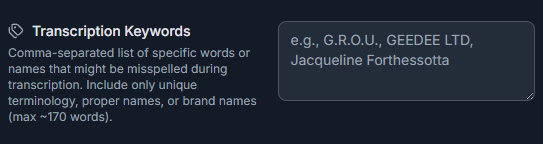
- What it does: Allows you to define a list of specific words, multi-word phrases, proper names, product names, or unique terms where you want to increase the probability of their correct and accurate transcription from audio/video recordings. AI will focus more on these keywords during the transcription process.
- Why it's useful: Many technical terms, project or product names, personal names, or specific company or community designations are not part of the common vocabulary with which large language models were trained. Artificial intelligence might therefore garble them during transcription, not recognize them correctly, or transcribe them phonetically incorrectly.
- How to enter: Type your keywords or multi-word phrases in the Keywords field, separated by a comma. Individual keywords or phrases should be in the exact form you want them transcribed (including upper/lower case if the written form matters).
- Example:
Pavel Riha,BuddyPro,FutureBot,Online Strategist,Wealth Dynamics,Sales Automators - In this example, "Pavel Riha", "BuddyPro", "FutureBot", etc. are the individual key items. Some are single-word, others multi-word -- spaces within the multi-word phrase are fine. A comma separates each key item.
- Example:
- Recommendations:
- Add the names of key people in your business, your community, or authors you frequently reference.
- Include the names of your main products, services, online courses, methodologies, or frameworks.
- Include any other unique terms, abbreviations, or specific designations that are important to capture accurately and consistently in your transcripts.
Important note:
Changes in the Transcription Settings part are automatically applied to newly processed audio/video files during the next update know-how. Already existing transcripts are not automatically updated by these changes.
Recommendations for Voice Messages
BuddyPro can transcribe voice messages, but it's important to observe their length.
👉 Voice messages should be a maximum of 15 minutes. The system will not transcribe longer recordings and will not consider them when answering. For longer content, we recommend using a different format -- for example, uploading an audio/video file to the sources/Files folder on Google Drive.