Shaping Your AI's Specializations: Expert Subroles
Once you have your know-how uploaded and processed (after successful update know-how), it's time for another key step: creating expert subroles. These subroles are like specialized "mental frameworks" or "expert identities" that your AI Expert dynamically adopts to respond as best and most relevantly as possible to specific queries and conversation topics with users.
What Are Expert Subroles and Why Are They Key to Response Quality?
Imagine your AI Expert as one highly capable professional with many specializations. When a user asks about topic A (e.g., "How to prepare content for a sales webinar?"), AI internally activates the subrole "Webinar Content Creation Specialist". If the conversation subsequently turns to topic B (e.g., "And what technical tools for webinars do you recommend?"), AI smoothly transitions to the subrole "Technical Advisor for Webinar Platforms".
-
Dynamic activation: These subroles are activated and changed automatically in the background according to the current conversation context. The user doesn't directly see them and doesn't need to specify which role AI should use -- AI recognizes it itself from their queries.
-
Detailed definitions from your know-how: Each expert subrole has its own detailed written definition. This definition is stored as a separate Google Doc in the ROLES folder on your Google Drive and is automatically generated from your uploaded know-how. It typically contains:
-
Significance for quality: Thanks to these detailed subroles, your AI Expert can provide significantly more specific, deeper, and contextually relevant advice. This is key to making AI truly act like a real expert in your domain, not just as a general information searcher. The number of roles can reach dozens to hundreds depending on the scope and complexity of your know-how.
How the List of Suggested Role Names Is Created (Working with the ROLES/list_of_roles.gdoc File)
After each successful completion of update know-how (when your know-how is uploaded and processed), BuddyPro analyzes all currently available content in your knowledge base. Based on this analysis, it identifies key themes and natural specializations.
- List of role names: The names of these potential expert subroles are saved (or updated) in the Google Doc
list_of_roles.gdoc, which you'll find on your Google Drive in the ROLES folder. Each role name is on a separate line. - What to do with this list?
Key Step: Automatic Creation of Detailed Content (Definitions) for Each Role
For your AI Expert to act competently in these specializations, it needs a detailed written definition for each. To create (or regenerate/update) these definitions for all roles listed in list_of_roles.gdoc, send the /updateRoles command to your BuddyPro instance in Telegram.
The Dashboard's Roles page provides a read-only overview of your current roles — you can see Total Roles, Total Size, Average Size, and Last Updated stats. Below the stats, the Role Files section lets you browse role-specific content and instructions. However, the actual role generation is triggered via the /updateRoles command in Telegram.
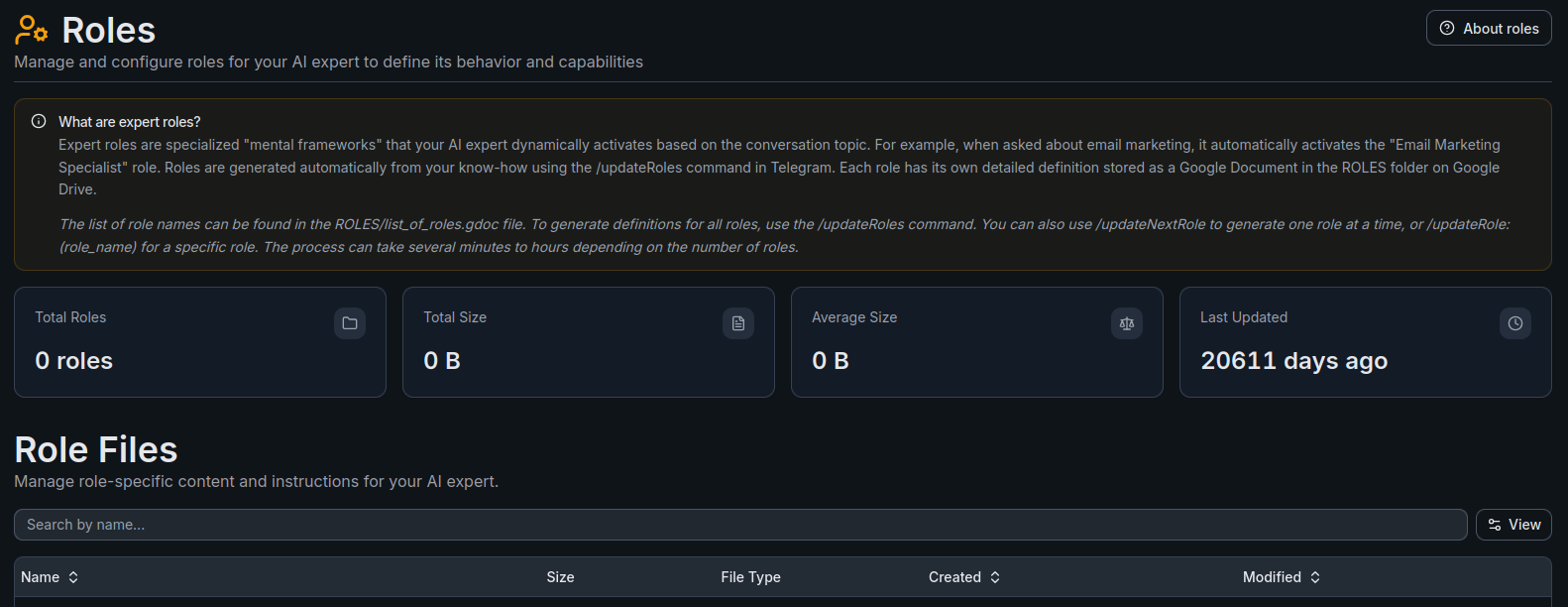
- What happens after launching update roles?
- Progress and completion:
Additional Commands for More Advanced Role Content Generation Management
In addition to bulk update roles, you have more targeted tools available:
- ✨
/updateNextRole - 🎯
/updateRole:name_of_role - 🛑
/stopUpdateRoles
What Does the Google Doc with a Specific Role Definition Contain?
Each role's Google Doc in the ROLES folder is a detailed "script" for AI in that subrole. It usually contains:
- Role name: Clear specialization.
- Purpose and goals: What AI should achieve in this role.
- Key competencies and knowledge: List of expertise derived from your know-how.
- Preferred methods and procedures: Specific techniques and strategies from your know-how.
- Specific communication style (if relevant)
- Examples of typical questions/situations.
The language of the role definition (e.g., Czech, English) may differ depending on the source know-how, but doesn't affect AI's ability to communicate with the user in their preferred language.
Options for Manual Editing of Content (Definitions) of Expert Subroles
In most cases (>99%), it's not necessary to manually intervene in automatically generated role definitions. The BuddyPro platform creates them comprehensively based on your know-how.
- When to exceptionally consider manual editing?
- How to perform manual editing:
- ⚠️ Warning: This is a procedure for advanced tuning. Unprofessional interventions can worsen AI consistency. If you're not sure, consult with support or community. In most cases, leave roles as BuddyPro generates them.
If you want AI to completely rewrite the role definition based on new or significantly updated know-how (not just load your manual edit of the existing definition), delete the respective role .gdoc file in the ROLES folder on Google Drive and then run update roles (or /updateRole:role_name if the role name still exists in list_of_roles.gdoc). AI will then generate a completely new definition for this role.
Frequently Asked Questions (FAQ) for This Step
What's the difference between update know-how and update roles?
- Update know-how processes your uploaded source files (PDFs, videos, text, URLs) in the
sourcesfolder, creates transcripts from them, stores them in a vector database, and updates the list of role names inROLES/list_of_roles.gdoc. It also retrieves changes insystem_prompt.gdocandonboarding.gdoc. So it is a command for updating "raw" know-how and basic settings. - Update roles takes the list of role names from
list_of_roles.gdocand generates a detailed written definition (role content) for each name based on the currently processed know-how. It stores these definitions as separate.gdocfiles in theROLESfolder. It is thus a command to create or update "expert specializations" of your AI. - The order is important: Always update know-how first (to keep the know-how up-to-date), and then update roles (to generate roles from the current know-how).
Do I always have to generate content for all roles at once using the Update Roles button?
No. You can use /updateNextRole to generate one role at a time, or /updateRole:{name_of_role} to generate targeted content for a specific role. This is useful for testing or incremental builds.
If I manually edit the content of a role .gdoc file, will AI overwrite my changes on the next run of update roles?
- If you run the generic update roles command, the AI should respect the existing file content and not automatically overwrite it if the file already exists. Rather, it tries to process new or pending roles from the list.
- If you want the AI to retrieve your manual change, it is best to use the targeted
/updateRole:{updated_role_name}command. - If, on the other hand, you want the AI to ignore your manual changes and completely overwrite the role definition based on your current know-how (e.g., you messed up or want to start over with automatic generation), then it's best to delete the entire
.gdocfile for that role from theROLESfolder and then use update roles or/updateRole:{role_name}. The AI will then create a new, clean definition.