Link to Your Google Drive (Home to All Your AI Expert Know-How)
For your AI Expert to learn and draw on knowledge specific to your expertise, it needs a place where you'll upload all relevant materials. These materials can be text documents, PDF files, audio recordings, video transcripts, links to websites, and other sources of your know-how. The BuddyPro platform uses Google Drive for this purpose.
In this step, you'll create a special folder on your Google Drive account and connect it to your newly created BuddyPro instance. Don't worry, it's simpler than it may seem, and we'll guide you through it step by step.
Creating a New Folder on Your Google Drive and Sharing It
After successfully activating the bot, the main overview of your AI assistant will be displayed. To fully utilize all features, you need to complete the setup.
⚠️ Important: Complete the steps in the exact order -- each builds on the previous one.
Click Start Setup to begin configuration or on the first step - Connect Google Drive.
BuddyPro Dashboard will prompt you for the following actions:
-
Go to your Google Drive: Open drive.google.com in your web browser and sign in to your Google account (can be personal or business).
-
Create a new, empty folder: Click the "+ New" button (or similar, depending on your Google Drive language settings) and select "New folder".
-
Share this folder with a specific service email address: This is a key step. In the dashboard you'll see a unique service email address. It will have a long, technical-looking format, approximately like this:
buddy-fm-service-xxxxxx@buddy-fm-yyyyyy.iam.gserviceaccount.com
- Important: Copy the exact address directly from the Dashboard! (click the 📋 icon) Don't use this example.
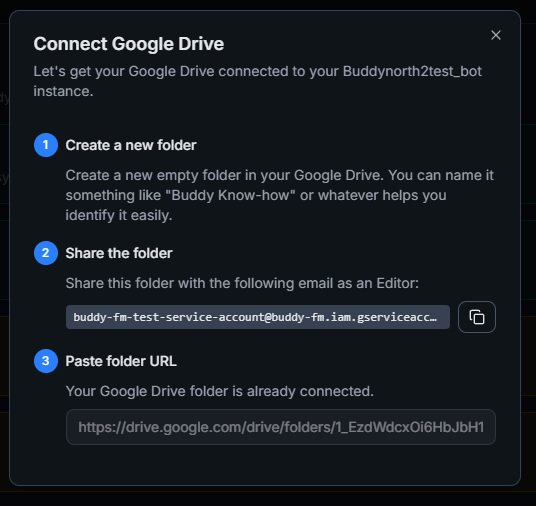
- Sharing procedure:
Getting the URL of Your Shared Folder
After successfully creating and sharing the folder, you need to provide its address to your BuddyPro instance.
- Open the shared folder: On your Google Drive, double-click on the folder you just created and shared to open it.
- Copy the folder's URL: Look at the address bar of your web browser. You'll see the complete web address (URL) of this folder there. Select this entire address and copy it (e.g., using Ctrl+C or Cmd+C).
- Return to the Dashboard: Paste the URL into the field in the Dashboard application.
- Click Connect Folder
Your Folder on Google Drive Is Now Connected and Automatically Structured! 🎉
If you did everything correctly, in the Next Steps section you'll see:
- ✅ Green checkmark next to "Connect Google Drive"
- Green highlighting of the entire row
This means your Google Drive is successfully connected. (Folder and structure successfully created. Please read the README file in your Google Drive folder for further instructions.)
And now the best part: when you return to your (originally empty) folder on Google Drive and refresh its contents (with F5 key or the refresh icon), you'll see that BuddyPro has automatically created a specific structure of files and subfolders in it. This structure is necessary for the next steps -- training and managing your AI Expert.
Typically you'll find the following here (names may vary slightly, but the purpose remains the same):
- 📄 README.gdoc (or .txt): This document contains basic (usually English) instructions and an overview of how to work with content on Google Drive, how to upload different types of know-how, how the System Prompt works, etc. We recommend at least skimming through it (or translating key parts using AI if English isn't your strong suit).
- 📁 sources: Key folder! This is where you'll place all your expert know-how. It contains additional subfolders for better organization:
- 📁
Files: For files uploaded directly from your computer (e.g., PDF documents,.docxor.txttext files,.mp3audio recordings,.mp4video files -- for videos, the audio track and its text transcription will primarily be used for training). - 📁
Texts: This subfolder is ideal for creating and storing Google Docs with your textual know-how. This can include frequently asked questions (FAQs), detailed procedures, up-to-date information that you want to easily edit and maintain. - 📁
URLs: Here you will find a text file (usually namedURL SOURCES.gdoc). In this file, you'll insert URL links to publicly accessible resources -- websites, blog articles, or videos on platforms like YouTube or Vimeo -- on individual lines.
- 📁
- 📁 ROLES: In this folder, BuddyPro will manage information about so-called expert subroles. These are specializations that your AI Expert will automatically create based on analysis of your uploaded know-how (e.g., "Facebook Advertising Specialist", "Stress Management Coach"). After initial content processing, you'll find a file here called list_of_roles.gdoc (list of proposed role names) and later, after running the relevant command (see Part C), individual Google Docs with detailed definitions (=instructions) for each role.
You'll actively work with this automatically created structure of files and folders on your Google Drive when training, tuning, and managing your unique AI Expert. We'll look at individual elements and their use in more detail in the following PART C: TRAINING YOUR AI EXPERT.
Frequently Asked Questions (FAQ) for This Step
Can I use an existing folder on my Google Drive for BuddyPro, or do I always have to create a new one?
We recommend creating a new, empty folder. BuddyPro will automatically create a specific structure of files and subfolders needed for its operation in it. If you used an existing folder with other content, conflicts or confusion could occur.
What if it reports an error during creation?
The most common cause is an incorrectly shared folder. Make sure you added the service email with Editor permissions, not just as a Reader. Also check that you copied the entire email address including the domain @buddy-fm.iam.gserviceaccount.com. Another common error is incorrect URL format. The folder address must be in the format https://drive.google.com/drive/folders/... -- the simplest way is to copy it directly from the browser's address bar when you have the folder open. Sometimes it can take a few seconds for Google Drive to process the sharing settings. If the error appears immediately after sharing, wait a moment and try again. If the problem persists, click the How to connect? link in the dialog box -- you'll find a detailed guide with images there.
Is sharing the folder with that long service email address really secure?
Yes, it's secure. As we mentioned, BuddyPro only gains access to the contents of this one folder you specified. It has no access to any other data on your Google Drive. Service accounts of this type are a standard way for applications to securely access limited resources on Google Drive.
How much space on Google Drive will I need for my AI Expert?
That depends purely on the amount and type of know-how you plan to upload. Text documents take up minimal space. Audio and especially video files can be larger. A standard free Google account offers 15 GB of space, which should be enough for most experts to start. Transcriptions and role definitions that BuddyPro generates are textual and don't take up much space.
Can I later change the Google Drive folder that my BuddyPro instance uses?
Yes, it's possible. If for some reason you needed to change the data location for your AI Expert to a different folder on Google Drive (or even to a different Google Drive account), you would proceed basically the same way: create a new folder, share it correctly, and then use the command:
/setFolder:{URL_Folder}
Replace {URL_Folder} with the complete URL of your new shared folder (e.g., https://drive.google.com/drive/folders/1aB2cDEFG3hijKLMN4oPQRST5uvWXYZ6). Be sure to type the command exactly, including a colon after /setFolder and no spaces between the colon and the URL.
The instance would then start working with the new folder. However, it's important to realize you would need to re-upload and process all know-how to this new folder. Before such a step, we recommend considering its necessity or consulting with support.