Activate Your BuddyPro License and Create Your AI Expert
In this step, we'll activate your purchased BuddyPro license and link it to the created Telegram bot. This will turn it into a full-fledged instance of your AI Expert.
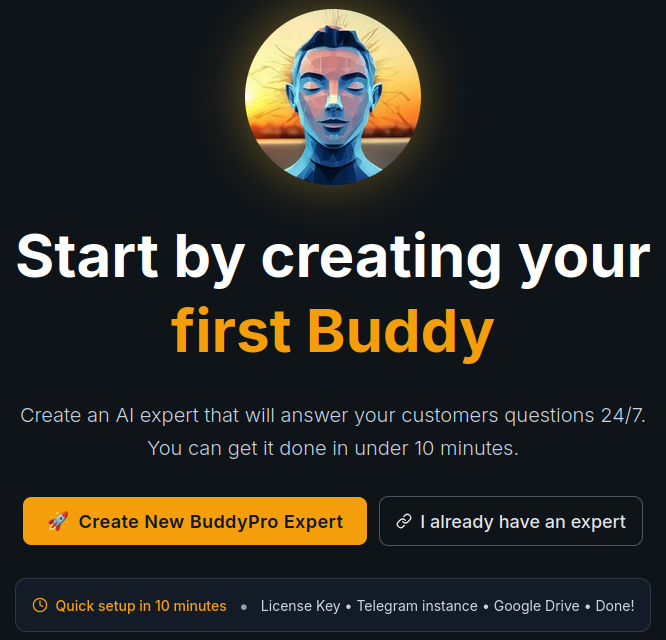
After logging into the Dashboard application, you'll be greeted by a welcome screen where you can choose how to proceed:
- 🚀 Create New BuddyPro Expert — Start fresh with the setup wizard to create a brand new AI Expert instance.
- 🔗 I already have an expert — Link an existing BuddyPro instance (Telegram bot) to your Dashboard account.
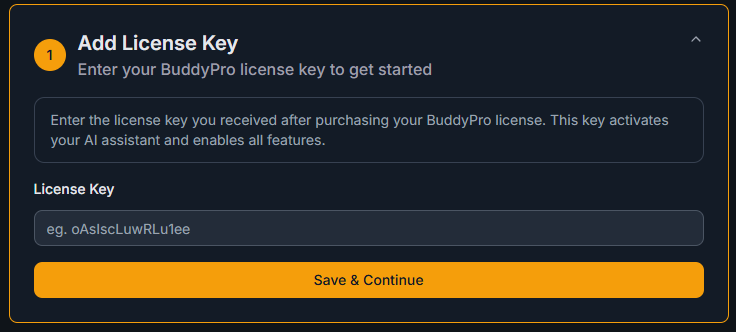
The First Step Is Activating Your BuddyPro License
If you received a direct link to the Dashboard with your license key (e.g., from a purchase confirmation email), the license key field will be pre-filled automatically — just verify it's correct and proceed.
- Adding the license key
The Second Step Is Linking the License to a Telegram Bot
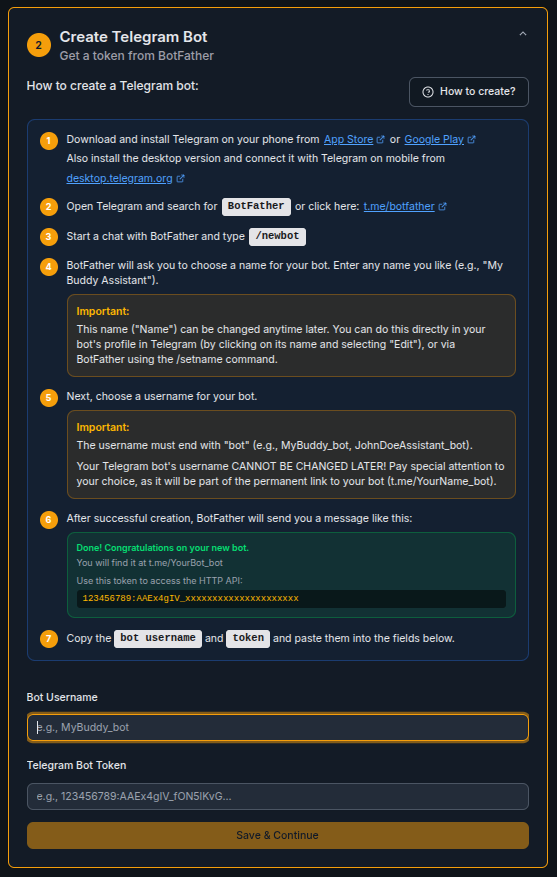
Every BuddyPro AI Expert needs its own "communication channel" within the Telegram platform. This channel is a special type of account called a Telegram bot. Don't worry, you don't need to program anything. Creating this bot is simple and you can do it in a few minutes using Telegram's official tool called @BotFather.
Why do you need to create the Telegram bot yourself? It's important from an ownership and control perspective. By creating the bot yourself, you become its rightful owner. You have full control over its name, profile picture, and most importantly, over the unique API Token, which is like the "master key" to your bot. This procedure ensures maximum security and autonomy of your AI instance. No one else (not us, not your assistant) should do this step for you if you want to have full power over your AI Expert.
Open @BotFather in Your Telegram App
- First, make sure you have the Telegram app installed. You can use it on your computer (recommended for easier data copying) or on your mobile phone.
- Launch Telegram.
- In the search field (usually a magnifying glass at the top left of the app), type: @BotFather
- From the search results, select the official @BotFather account. You'll recognize it by the blue verification checkmark ☑️ next to its name. Be careful not to select some unofficial copy or fraudulent account.
- Direct link to open @BotFather in Telegram (if you're reading the documentation on a device with Telegram): https://t.me/BotFather
- If you're communicating with @BotFather for the first time, you'll see a ▶️ Start button (or /start) at the bottom of the chat window. Click it. @BotFather will respond with a welcome message and a list of available commands.
Enter the /newbot Command to Create a New Bot
- In the chat field in your conversation with @BotFather, type the following command (including the slash) and send it (by pressing Enter on your computer or the Send button on your phone):
/newbot
Choose a Name for Your Telegram Bot (the Name Users Will See)
- After sending the /newbot command, @BotFather will respond with: Alright, a new bot. How are we going to call it? Please choose a name for your bot.
- Now enter the name under which your AI Expert will appear in Telegram. Your clients will see this name in the conversation header, in their chat list, and in the bot's profile.
- Tips for choosing a name:
- Name examples: Personal Growth AI Coach, Marketing Expert PRO, My Health Guide, Financial Advisor Alpha, Pavel Říha AI.
- Type the chosen name into the chat with @BotFather and send it.
Choose a Unique Username for Your Telegram Bot
- If the name was acceptable, @BotFather will respond: Good. Now let's choose a username for your bot. It must end in
'bot', like this, for example: TetrisBot or tetris_bot. - Now you need to enter a username. This is the unique technical identifier of your bot within the entire Telegram platform.
- Username rules:
- ⚠️ IMPORTANT WARNING: Your Telegram bot's username CANNOT BE CHANGED LATER! Give extra attention to this choice. Although from a marketing perspective it's not as visible as the "bot name" (what you entered in step 4.3), it appears in the direct link to the bot (e.g.,
t.me/your_username_bot). - Tips for choosing a username:
- Type the chosen username into the chat with @BotFather and send it. If the name is already taken, @BotFather will notify you (Sorry, this username is already taken. Please try something different.) and you'll need to try a different variant.
Obtaining and Securely Storing Your API Token (the Key to Your Bot!)
- If the chosen username is available and meets the rules, @BotFather will display a congratulatory message that will look approximately like this:
Done! Congratulations on your new bot. You will find it at t.me/YOUR_USERNAME_BOT. You can now add a description, about section and profile picture for your bot, see /help for a list of commands.
- That long string of random letters and numbers, separated by a colon (in the example above it's
1234567890:AaBbCcDdEeFfGgHhIiJjKkLlMmNnOoPpQqRrSsTt), is YOUR UNIQUE API TOKEN. - 🔑 THIS API TOKEN IS EXTREMELY IMPORTANT AND SENSITIVE!
- Your Telegram bot is now technically created! However, it's still just an "empty shell" without any intelligence or know-how. In the next steps, we'll "breathe life" into it using the BuddyPro platform.
💡 Additional tip: As @BotFather mentions in his message, you can right away (or at any time later) set up other details of your bot using additional commands:
/setuserpic-- to upload a profile picture./setdescription-- to add a longer description that will be shown to users when they view your bot's profile./setabouttext-- to set a short "About the bot" text that will be displayed to users before they start a conversation.
These adjustments (name, picture, description) can also be made directly in your bot's profile in the Telegram app.
After Creating the Bot in BotFather, Copy the Necessary Information and Paste It into the Dashboard Application
- In the Bot Username field, enter your bot's username (e.g.,
MyBuddy_bot) - In the Telegram Bot Token field, paste the token that BotFather sent you (e.g.,
1234567890:AaBbCcDdEeFfGgHhIiJjKkLlMmNnOoPpQqRrSsTt) - Click Save & Continue
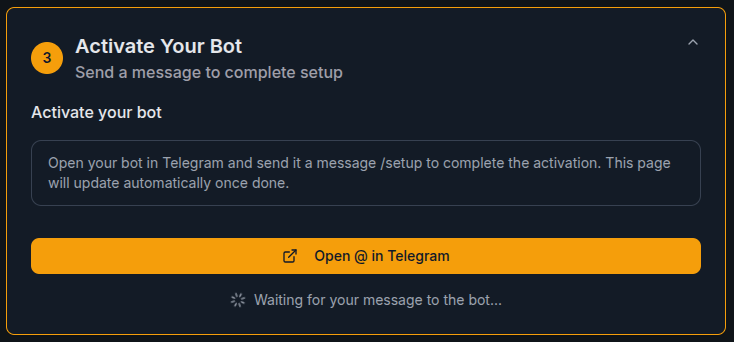
AI Expert Activation
The last step is activating your AI assistant directly in Telegram.
- Click the Open @YourBot_bot in Telegram button
- The Telegram app will open with a chat of your new bot
- In this new chat (with your instance), click the ▶️ Start button, which usually appears at the beginning of the conversation.
- Type the command
/setupand send
✅ Done! After sending /setup, your AI expert will be successfully created. 🎉 CONGRATULATIONS! Your AI Expert is officially born! 🎉
The Dashboard page will automatically update and redirect you to the main screen.
Tip: If Telegram doesn't open automatically, make sure you have the app installed. Alternatively, you can search for the bot manually using its username.
- It still doesn't know anything (doesn't have your know-how), but its "body" and "brain" are ready to learn. Now we'll connect it to the place where you'll store all knowledge -- your Google Drive.
- From this moment on, you'll conduct most administrative commands and all regular communication with your AI Expert in this new chat.
Alternative: Connecting an Existing Expert ("I already have an expert")
If you already have a running BuddyPro instance (Telegram bot) that was set up previously and you want to connect it to your Dashboard account, choose the "I already have an expert" option on the welcome screen.
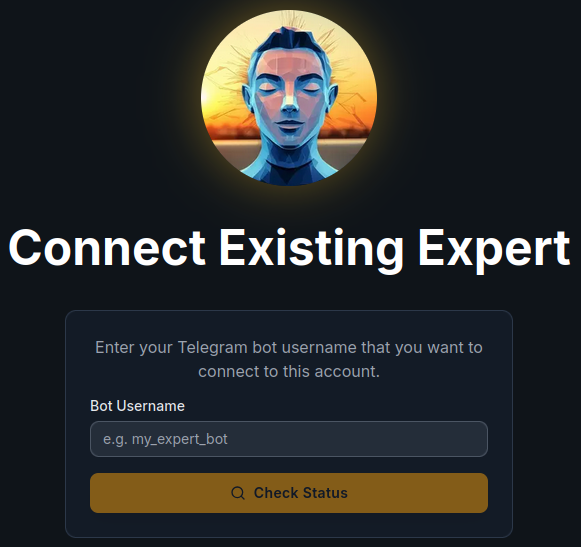
Step 1: Check Bot Status
- Enter your existing bot's Bot Username (e.g.,
my_expert_bot). - Click the Check Status button.
- If the bot is ready, you'll proceed to the next step.
- If the bot is not ready yet, you'll be asked to run the
/updatecommand in Telegram first:- Open Telegram and go to your BuddyPro expert chat.
- Send the
/updatecommand. - After the update completes, come back to the Dashboard and click Check Status again.
Step 2: Connect Your Expert
Once the bot status is confirmed as ready, you'll see the connection form:
- License Key — Enter your BuddyPro license key. If you don't know it, send
/myLicenseto your bot in Telegram. - Linking Code — Get a one-time linking code by sending
/connectWebto your bot in Telegram, then enter it here. - Click Connect Expert to complete the connection.
After successful connection, you'll be redirected to your Dashboard home page where you can manage your existing AI Expert.
Frequently Asked Questions (FAQ)
Where exactly can I find my license code?
Your BuddyPro license code was sent to you by email after successfully purchasing the license. Search your email inbox (including spam/junk folder) and look for an email from BuddyPro confirming your order or welcoming you to the platform.
Can I use the same BuddyPro license for multiple Telegram bots?
No, one BuddyPro license is intended for activating one unique BuddyPro instance (one Telegram bot). If you want to create multiple independent AI Experts, you'll need multiple licenses.
Why do I have to create the Telegram bot myself through @BotFather? Can't you do it for me?
This step is crucial for your ownership and full control over your AI Expert. When you create the bot yourself, you become its official owner within the Telegram platform. This means only you have access to its API Token (master key) and can manage its basic settings. For security reasons and to ensure your autonomy, we cannot do this step for you, nor do we recommend delegating it to someone else if you want to have absolute control over your bot.
Do I need to install Telegram for BuddyPro?
Yes, currently BuddyPro works exclusively through the Telegram platform. You can install Telegram for free on your computer (Windows, macOS, Linux) and on your mobile phone (iOS, Android). For the bot creation process and its subsequent management, working on a computer is usually more convenient.
How do I recognize the official @BotFather?
The official @BotFather has a blue verification checkmark ✅ next to its name. Watch out for possible imitations without this verification. For certainty, you can use the direct link: https://t.me/BotFather.
What if @BotFather doesn't respond, or I want to start over?
If you're communicating with @BotFather for the first time, make sure you clicked the ▶️ Start button. If you want to restart the process of creating a new bot or got stuck, you can always type the /newbot command again.
Can I really change the "bot name" (Name) later?
Yes, the bot name (what users see in chat) can be changed at any time later. Either through @BotFather using the /setname command, or directly in your bot's profile in Telegram after creating it.
What about the "bot username"? Can I change it too?
No, unfortunately the username cannot be changed. Once you set it, it's permanent. That's why you should pay attention to its choice. If you're not sure, choose something more universal (e.g., your name without diacritics + "bot"). Avoid typos.
What should I do if my preferred username is taken?
@BotFather will notify you of this. You'll need to try a different variant -- add a digit, underscore, or choose a completely different username until you find an available one.
Where exactly do I find the API Token and what does it look like?
The API Token is generated and displayed by @BotFather in the last message after successfully creating the bot. It's a long string of letters and numbers, separated by a colon, e.g., 1234567890:AaBbCcDdEeFfGgHhIiJjKkLlMmNnOoPpQqRrSsTt. You'll find it under the sentence "Use this token to access the HTTP API:".
What happens if I lose my API Token or someone obtains it?
Loss or compromise of the API Token is a serious problem. Anyone who has your token can control your bot. Save the token in a very secure location and don't share it with anyone. If you suspect someone has obtained your token, you can generate a new token for your bot with @BotFather using the /token command (and selecting the relevant bot). The old token will then stop working. You'll then need to update the new token in your BuddyPro instance settings as well. To do this, send the following command to @BuddyFM_bot:
/resetBuddyProToken:{your-license}:{botUsername}:{newBotToken}
Replace {your-license} and {botUsername} with your existing license key and bot username (these must match your current instance), and {newBotToken} with the new token you generated at @BotFather.
Do I have to set up the bot's profile picture and description right when creating it?
No, you don't have to. You can set the profile picture, description, and short info at any time later, either through @BotFather (commands /setuserpic, /setdescription, /setabouttext), or directly in your bot's profile in Telegram. For basic bot creation, just the name and username are enough.
Is the Telegram bot I just created already my finished BuddyPro AI Expert?
No, not yet. The Telegram bot created through @BotFather is just an "empty shell" or "communication channel". It has no intelligence or your know-how. We'll "breathe life" into it in the next steps by connecting it to the BuddyPro platform and uploading your knowledge.
Can my assistant or someone from my team do this first step (creating the Telegram bot) for me?
Technically yes, but we strongly discourage it if you want to have full and exclusive control over your AI Expert. Whoever creates the bot becomes its owner and has access to the API Token. Ideally, you should do this step yourself. Later, you can involve team members in managing the BuddyPro instance in a different way.