Dashboard Configuration Settings
The Configuration page in the Dashboard lets you adjust your BuddyPro instance's core settings and preferences. It is divided into four sections: AI Model Selection, Essential Business Settings, Voice Settings, and Transcription Settings.
AI Model Selection
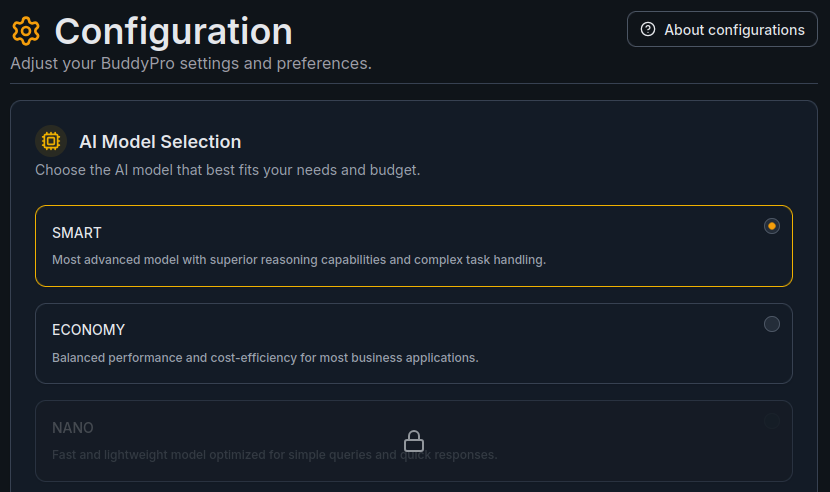
Your BuddyPro instance runs on the SMART model:
- SMART — Most advanced model with superior reasoning capabilities and complex task handling. Recommended for the highest quality answers. Approximate cost per message: ~$0.08 (typically in the range $0.06–$0.12, depending on the length and complexity of the conversation).
All prices per message listed above are stated excluding VAT.
The SMART model applies to all user conversations with your AI Expert.
Essential Business Settings
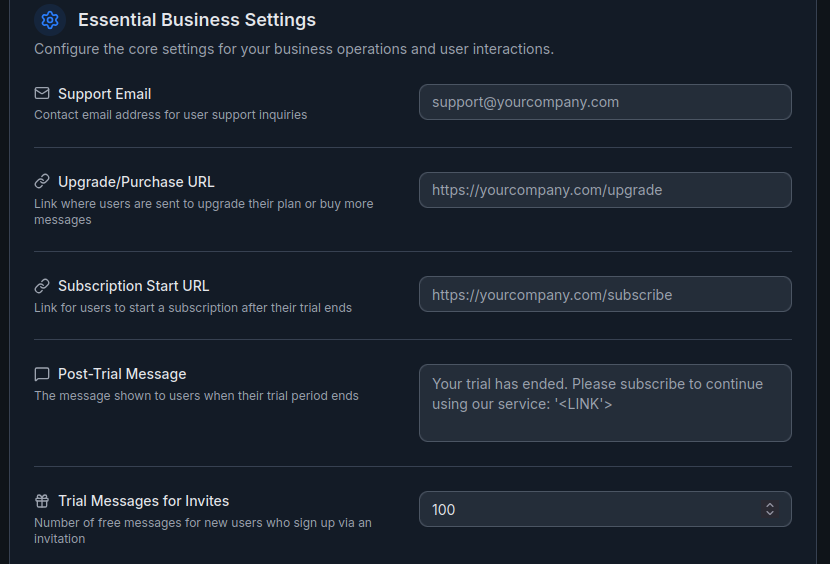
Configure the core settings for your business operations and user interactions:
- Support Email — Contact email address for user support inquiries. Displayed to users when they need help.
- Upgrade/Purchase URL — Link where users are sent to upgrade their plan or buy more messages. This URL is shown when users reach their message limit.
- Subscription Start URL — Link for users to start a subscription after their trial ends. Shown as part of the post-trial flow.
- Post-Trial Message — The message shown to users when their trial period ends. You can include
<LINK>as a placeholder that will be replaced with your Subscription Start URL. - Trial Messages for Invites — Number of free messages for new users who sign up via an invitation link (e.g.,
100).
After changing any of these settings, click Save Settings at the bottom of the page to apply.
Voice Settings
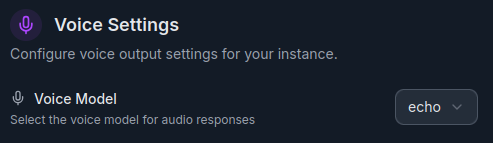
Configure voice output settings for your instance:
- Voice Model — Select the voice model for audio responses. Choose from available OpenAI voices:
alloy,echo,fable,onyx,nova,shimmer.
This setting controls the standard AI voice used for text-to-speech responses. For a clone of your own voice, use the /createVoiceClone command in Telegram — voice clone setup is not available in the Dashboard.
Transcription Settings
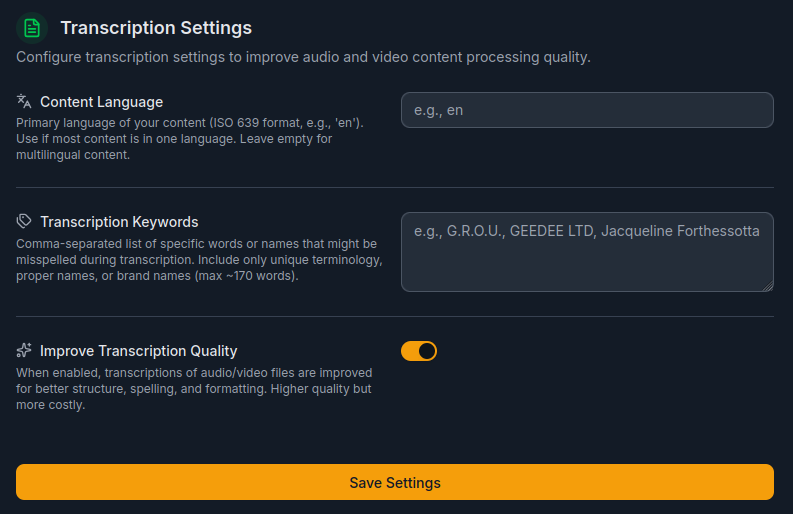
Configure transcription settings to improve audio and video content processing quality:
- Content Language — Primary language of your content (ISO 639 format, e.g.,
en,cs). Use if most content is in one language. Leave empty for multilingual content. - Transcription Keywords — Comma-separated list of specific words or names that might be misspelled during transcription. Include only unique terminology, proper names, or brand names (max ~170 words). Example:
G.R.O.U., GEEDEE LTD, Jacqueline Forthessotta. - Improve Transcription Quality — When enabled, transcriptions of audio/video files are improved for better structure, spelling, and formatting. Higher quality but more costly.
After changing these settings, click Save Settings to apply. Changes take effect during the next processing of audio/video files when you run the /update command.
For more details on how transcription quality improvement works and its impact on costs, see the dedicated Optimize Transcription page.